Connect Creem
Creem is the simplest integration: one API key, one webhook, no organization IDs or scopes to juggle. Payments and subscription renewals land in real time through the webhook, refunds net out automatically, and Sync now backfills up to a year of history.
statiz.revenue() beacon, never both, or the same payment counts twice (why).Step 1: Create the webhook
In the Creem dashboard, open Developers → Webhooks and click Create webhook.
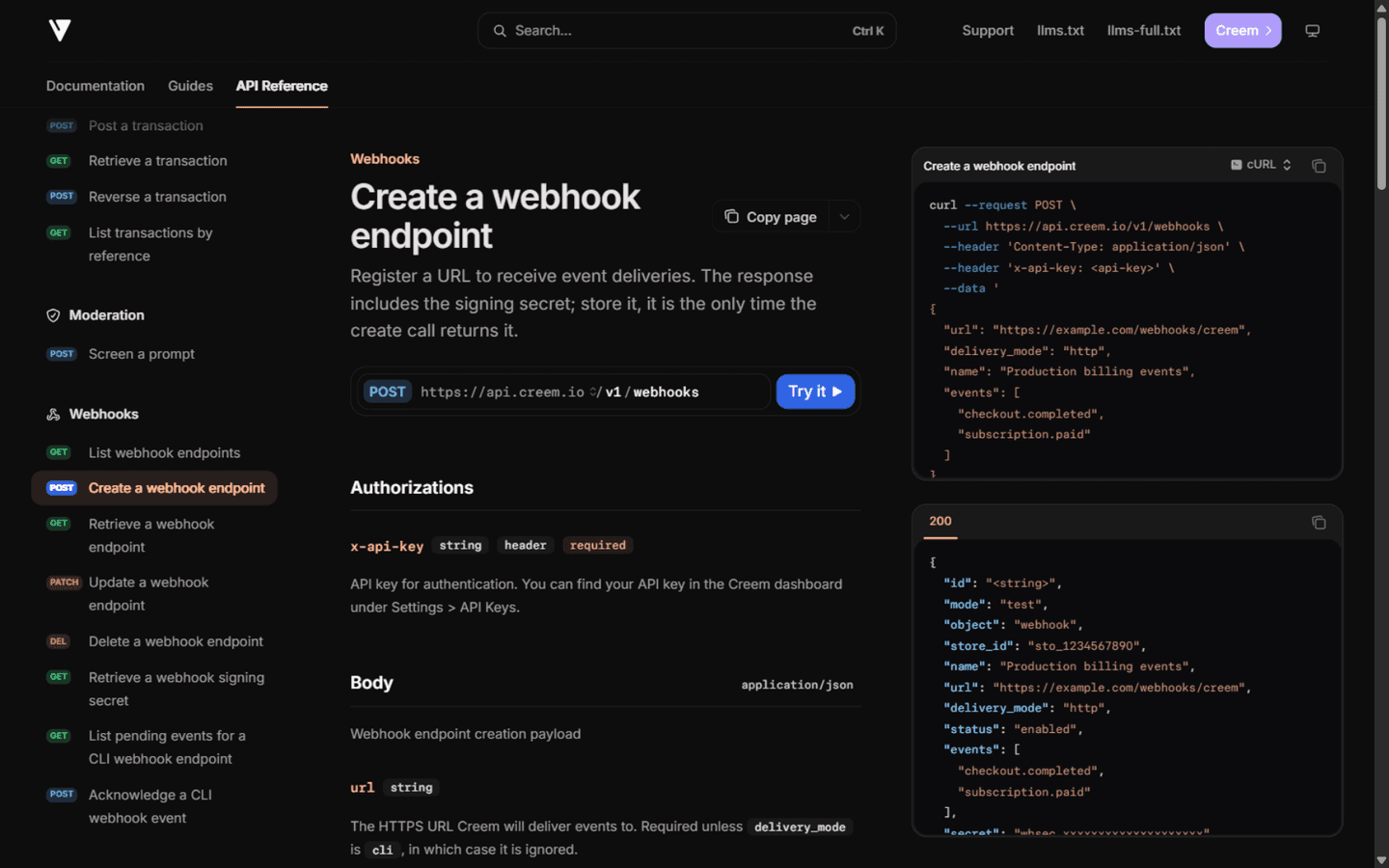
- Paste the Endpoint URL shown in Statiz under Settings → Revenue → Connect Creem — it looks like
https://your-statiz-url/api/webhooks/creem/{your site id}. Statiz must be reachable at a public URL (localhost can't receive webhooks — deploy first or use a tunnel). - Select exactly these three events:
checkout.completed— a paid checkout (Statiz fetches the order's transactions so rows use the canonicaltran_…ids)subscription.paid— a renewal payment (fetched the same way)refund.created— a refund (a negative row)
- After creating the webhook, copy the signing secret Creem shows — you'll paste it in Step 3.
Step 2: Copy your API key
In the Creem dashboard, open Developers → API Keys and copy an API key. The key is already scoped to your Creem store — nothing else to configure.
creem_…— a live key; Statiz reads from the production environment
Statiz accepts live keys only — test keys (creem_test_…) are rejected, so the numbers on your dashboard are real money.
Step 3: Connect in Statiz
Open your website in Statiz, go to Settings → Revenue, pick Creem as the provider, then paste the API key and the webhook signing secret and click Connect.
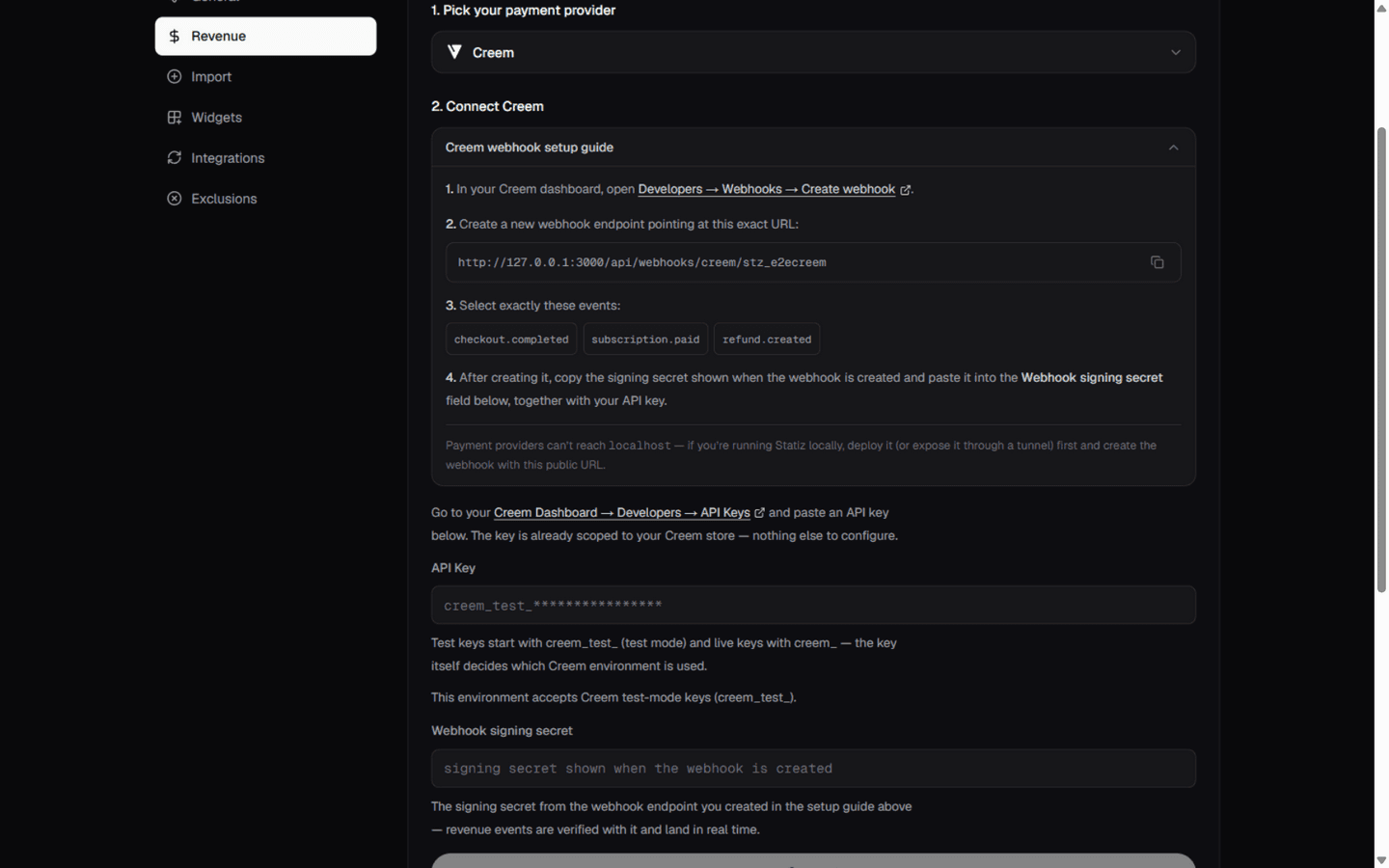
Statiz verifies the key against Creem's API, encrypts both values with AES-256-GCM, and stores them — the raw key is never logged or shown again. The card then shows your store's first product name as the account label.
Step 4: Sync and verify
Click Sync now once connected. The first sync backfills paid and refunded transactions from Creem's API — up to 365 days — and reports how many were imported. Later payments arrive in real time through the webhook.
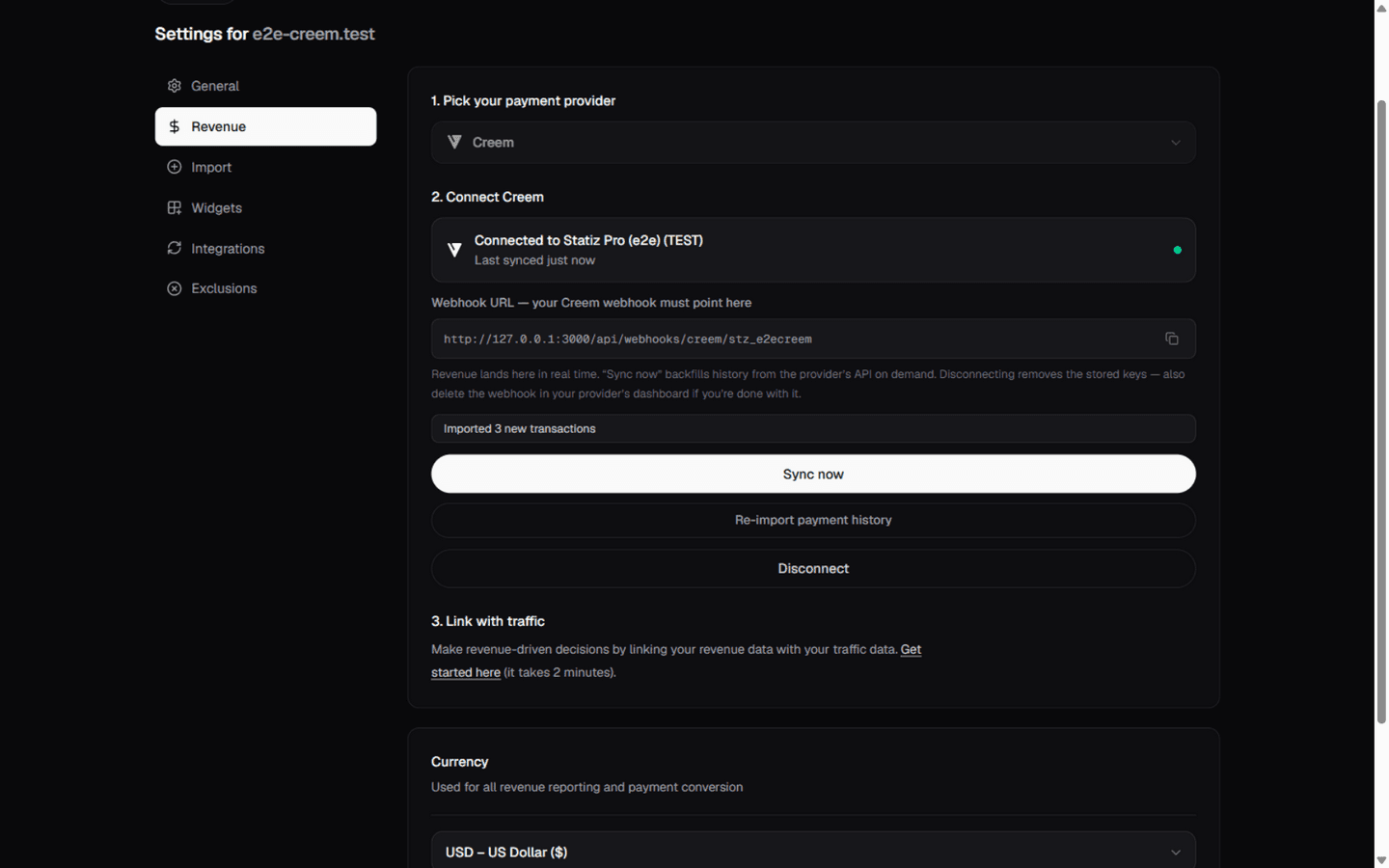
To verify the webhook end-to-end, complete a test checkout and watch the Revenue tile on the dashboard jump. Duplicate deliveries and re-syncs are harmless — webhook rows and synced rows use the same transaction ids, so nothing is counted twice.
Notes & caveats
- Creem revenue counts
amount_paid— what the customer actually paid, tax included. - Partial refunds are supported: a transaction with a refunded amount produces the payment row plus a matching negative row.
- To attribute payments to tracked visitors, pass
statz_visitor_idin the checkout'smetadata— the full recipe is in Link payments to visitors. - Creem retries failed deliveries five times over six hours; Statiz acknowledges everything it processed, so retries are always safe.
- Disconnecting removes the stored key and secret — also delete the webhook in Creem's dashboard if you're done.